
Tasks and Workflows
Create scoped tasks, configure workflow behavior, use plans, and manage the task lifecycle.
A task is the work to deliver. A workflow is the sequence of steps it follows. Use a task for the outcome and a workflow for the review process.
Quick path
- Add a repository to a workspace.
- Create a task with a clear outcome, a compatible agent, and an executor.
- Start the agent, review its changes, and move the task through the human gate.
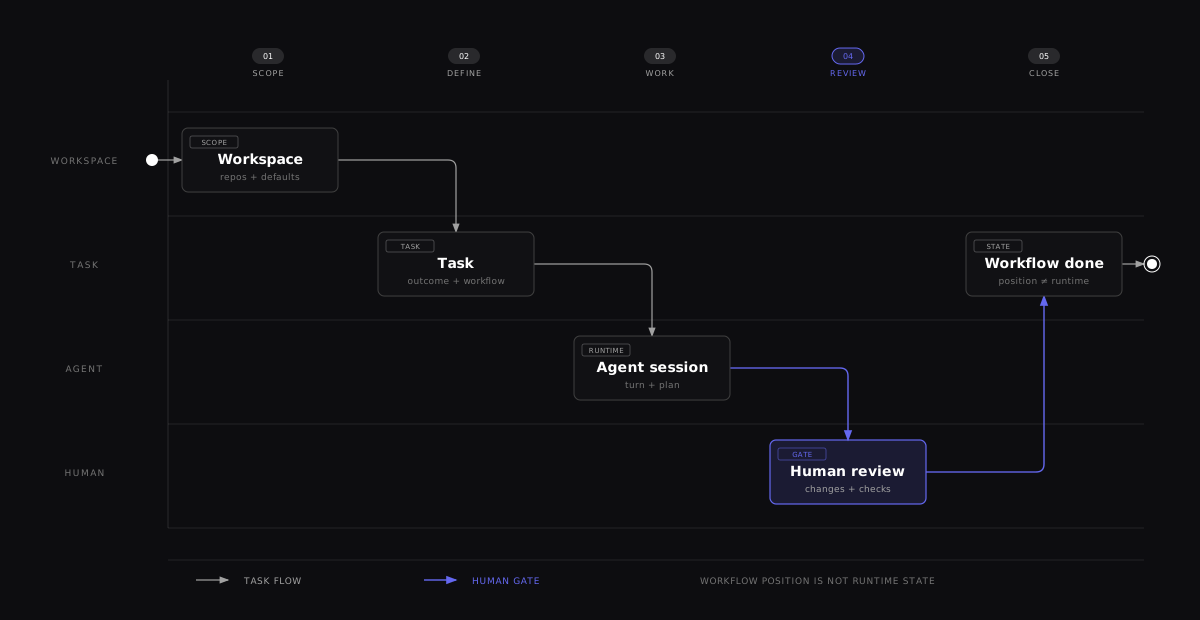

The task carries the outcome through the workflow. The repository and session provide the working context, while review remains an explicit human gate.
Browse this guide
Create and start tasks
Organize and review work
- Task dependencies
- Find and organize tasks
- Use the task plan
- Arrange task panels
- Manage forwarded ports
- Archive, unarchive, and delete
Configure workflows
Manage forwarded ports
Enable Port forwarding from the task's + menu on desktop or the active-task
drawer on a phone, then open the network control in the task top bar.
Forwarded ports appears first with the number of active tunnels. Each row shows Forwarding, its dedicated tunnel URL, and controls to open, copy, or stop that tunnel. Other ports lists detected and manually added ports that you can start forwarding. Each group sorts by target port number.
A proxy URL is also available for each listed port. A proxy link alone does not mean a dedicated tunnel is active. Starting a tunnel moves the port to the top group; stopping it keeps the port available to restart during that dialog visit. Closing the dialog leaves active tunnels running.
Keep your view when creating tasks
In Settings > Preferences > Task Behavior, turn off Open new tasks automatically and select Save changes to create tasks without leaving your current view. The setting is on by default and is saved with your user preferences across reloads. It works on desktop and mobile.
Tasks and agents still start as requested. You can open the new task manually from the task list. This setting controls opening newly created tasks; it does not change the separate preference for preventing agent auto-start on open.
Understand the model
| Concept | What it controls |
|---|---|
| Workspace | The scope containing repositories, workflows, tasks, integrations, and workspace defaults. |
| Workflow | An ordered set of steps plus the rules that run when a task or agent turn reaches an event. |
| Workflow step | The task's current process position, such as Backlog, Work, Review, or Done. |
| Task | The title, prompt, workflow position, repository attachments, sessions, and one shared plan. |
| Task repository | A repository, base branch, and optional checkout branch attached to a task. A task can have more than one. |
| Session | One agent conversation attached to a task. Several sessions can share the same task environment. |
| Plan | The task's single editable Markdown plan, with version history. Consecutive writes can be coalesced into one revision. |
Workflow position and runtime state differ. Moving a task changes its step. It does not prove that an agent ran, code was committed, review passed, or a pull request merged.
During a move:
- Kandev shows a spinner while the destination agent prepares or starts.
- Open the step details to see the lifecycle status and agent profile. On touch devices, use the Move to drawer.
- A destination without auto-start stays ready for a later agent start.
Before a move:
- The preview shows the session, effective model, context reset, and prompt options for the destination.
- Use the info button or expand the step row for full transition details. The condensed top bar shows Move here beside each eligible step.
- The preview can change while a turn runs or another session becomes available. Move here checks routing, permissions, WIP, and session state again.
After a move:
- An open task follows the conversation selected for the destination after it becomes available.
- If routing is pending or fails, Kandev keeps your selected conversation. A later manual selection stays active.
Move a task with one-time entry options
Normal Move here and next-step actions use the destination step's saved defaults. Choose Move with options in the workflow stepper, Chat status bar, or passthrough toolbar when one move needs an exception. The options apply to that entry only.
| Option | Effect |
|---|---|
| Reset context | Adds a reset. It cannot remove a reset required by the destination step. |
| Instructions | Adds one instruction block after the destination prompt. |
| Skip step prompt | Suppresses the destination prompt and task-description fallback. Without instructions, the task moves without starting a turn. |
For a keyboard move, press Cmd/Ctrl+K, search for Move to, and select a destination. Press Cmd/Ctrl+Enter to move with defaults, or Enter to open options. A failed move keeps your instructions so you can retry. On touch devices, move options open in a bottom drawer.
Moves keep the normal reachability, authorization, WIP, archive, workspace, and active-session rules. A move waits for a running agent to finish, and its options survive queueing and backend restarts. Instructions require an active target session or a destination that auto-starts an agent. Pull-request draft and review status use the PR step's automation. For the agent tool contract, see Automation and MCP.
Change a task's workflow
Choose Change workflow... from a single task's card, sidebar, task actions, or command-palette menu. Select a destination workflow and the step where this task will enter. The form previews the destination's session and settings before you submit. The task keeps its identity, description, repositories, and existing conversations.
When a destination workflow has fixed agent profiles, the form can map each profile to a compatible profile for this task. These replacements affect this task only. Reset a row to use the workflow's profile. Submitting replaces this task's previous workflow-agent mappings with the form's current choices. The form shows existing conversation relationships as read-only workflow details.
If the task changed while the form was open, refresh its assignment and review the form again. If the server response is uncertain, the form refreshes the task and blocks another submission until you review the refreshed assignment. If the refresh confirms the requested workflow change, the form reports success; otherwise, review the current assignment and form choices before deciding whether to retry. A multi-task selection keeps the separate bulk workflow action and does not support per-task profile mappings.
Task actions from the command palette
While a task is open, Cmd/Ctrl+K offers the task actions available from its sidebar
menu, including Pin/Unpin, Color, Priority, Edit, Rename, Create subtask, Nest under,
Link, Move to, Change workflow..., Archive, and Delete. Detach and plugin actions
appear when applicable. These commands target the open task, even when the search
also shows other tasks. Duplicate remains disabled.
Use arrow keys and Enter to choose an action or nested option. Back or Escape returns to the previous choices. Archive and Delete retain their confirmations. On phones, task overflow retains touch access; an attached keyboard can open the palette, whose choices also support touch.
Prepare a workspace
A new workspace created from Settings → Workspaces automatically receives a Kanban workflow with the built-in Kanban steps, so it can accept tasks immediately.
- Open Settings → Workspaces and select Add Workspace.
- Enter the required workspace name.
- Open the workspace's Repositories page and add its local repositories.
- Create an empty local repository from New Task when needed.
- Add remote URLs through New Task → Remote.
- Use Repository sets to select groups of repositories together.
- Open its Workflows page to review the default Kanban workflow. Create, import, or synchronize another workflow when the workspace needs a different process.
- On Workspace Settings, optionally choose a Default Executor and Default Agent Profile. Both default to No default unless configured.
The initial database bootstrap can include a Default Workspace and a Development workflow. Later user-created workspaces receive Kanban instead; they do not inherit other workflows or settings from the default workspace.
Create a task
Use New Task in the sidebar. In an open task, the Task split button also opens task creation.
-
Set a title. If the title field appears, enter up to 60 characters. With Agent-generated task titles enabled, Kandev uses the prompt's first six words as a provisional title. See advanced task creation.
-
Choose a workspace and workflow. Kandev can infer them from the current view. A regular task must belong to a workflow. Use the arrow between the workflow and step names to see where each start action places the task. Open the workflow selector to compare the ordered steps in each available workflow. If a preview fails, select Retry on that row. Your workflow selection and task draft stay unchanged.
-
Choose a source:
Source Use it for Notes Repo A configured, discovered, or new local repository Choose a branch or branch policy. Add more rows for a multi-repository task. Remote A remote repository Search GitHub, GitLab, or Azure DevOps, or paste a supported URL. Public GitHub reads and public gitlab.combranch discovery work without credentials. Private access and authenticated browse/write actions require provider credentials.None Planning, research, or work outside Git Use a scratch workspace or an optional folder on the Kandev host. Git worktree and repository-aware Changes, branch, and pull-request features are unavailable. In-app directory browsers list directories on the Kandev host. By default, they hide names that start with a dot, such as
.configor.local. Select Hidden folders beside the path to show them. The switch is off by default, and Kandev remembers your choice across in-app browsers. The desktop app's native folder picker uses the operating system's control for hidden entries. -
Choose an executor and agent profile. Both profiles must be compatible. A workflow default agent profile locks the task-level selector.
-
Add a description when needed. Use the eye button beside Enhance prompt with AI to preview a step's prompt template. The preview does not resolve task IDs or saved-prompt references until the task exists.
-
Choose how to start:
Action Result Start Plan Mode Creates an empty task in plan mode at the first positional step. Available only when agent-generated titles are off. Start task Requires a description and starts the agent. Uses the first step with Auto-start agent, then Start step, then the first step. Start task in plan mode Requires a description. Starts the agent in plan mode using the same step rules as Start task. Create without starting agent Requires a description and uses Start step, or the first positional step if none is set. A structured ACP profile prepares the session; passthrough/TUI starts immediately to create its PTY. On mobile, Plan mode and Create only provide the same behavior as the two non-primary actions.
When you choose Remote, Kandev can reuse an available matching checkout. If a previously registered local checkout folder was deleted, it uses another available source or creates a managed clone. The original local registration and its existing task associations remain unchanged; selecting that local repository explicitly still requires its checkout to be available. If an existing local checkout's origin no longer matches the selected remote, Kandev reports a validation error. Correct its origin or select it explicitly as a local repository.
Reduce downloads for a large remote repository
In New Task → Remote, select a repository and open its gear (Repository options). These settings apply only to that repository row in this task.
- Choose On demand to download file contents as Git needs them while retaining full commit history. Standard keeps the existing download behavior.
- Choose Selected folders and enter repository-relative directories, one per
line, for example
extensions/my-extension. Include shared packages your work needs. Up to 64 directories are supported; wildcards and parent paths are not. - Select Apply. A summary below the repository shows the applied choices. Cancel discards draft edits; Reset restores Standard and All folders.
Advanced options are available for GitHub repositories using Worktree or Local Docker with the built-in preparation script and Kandev-managed Git credentials. Other preparation paths show an explanation and keep advanced controls disabled. On phones, the gear opens a drawer with the same settings.
Selected folders use Git's directory-based sparse checkout: root and ancestor files remain available, and omitted files are not reported as deleted. Git can materialize additional files during conflict resolution. This is not an access restriction. Settings cannot change after the task environment is created; create a new task for a different scope. A new independent task starts with the default settings.
These options reduce download and checkout work. They do not change the existing clone timeout or guarantee that every repository will finish within it.
Branch policies
Manage named branch policies in Settings → Workspaces → workspace → Repositories. A policy stores a base branch, a branch-name template, and a pull-request target for one repository. The task picker shows policies before raw branches.
| Choice | Result |
|---|---|
| Branch policy | Starts a fresh branch from the saved base and applies its branch-name template. The saved pull-request target is the merge destination; open the information icon to review the values. |
| Raw branch | Continues to open the existing branch. |
When you create a task, Kandev saves the selected policy values on the task repository. Later edits or deletion of the policy do not change the task. Kandev's pull-request dialog uses the saved target by default. You can change it before creation. Kandev also adds the saved target to the agent's task context. The instruction tells the agent to pass the target explicitly to its provider CLI. Policies are not offered in Quick Chat, Remote, Add Sources, or Add Branch flows.
Kandev remembers draft or recently used repository, branch, executor, and profile choices. Review the restored values before submitting, especially after changing workspace.
When the selected profile is dynamic, the task keeps one logical profile and one session tab while Kandev chooses a concrete candidate in the configured order. Provider errors before a result may move execution to the next configured candidate. Kandev does not switch candidates after an ambiguous started turn. If the route has no eligible candidate, wait for the current turn to settle and use the session's Retry current agent or Try next agent recovery action.
Every editable local repository row in New Task offers Refresh repositories and Create new repository, including populated lists and empty search results. Refresh updates the available repositories without changing your selections. It stays visible but disabled during the request.
Kandev rejects an existing target path and creates one empty initial commit with no project files. It registers the repository in the workspace and selects it in the originating row. For a single-row task, Kandev selects a direct Local profile. If no direct Local profile exists, single-row creation stays disabled. For multiple rows, creation preserves the selected executor and the other rows. It does not require a direct Local profile.
Work with an empty remote repository
An existing local checkout or a repository selected from Remote can point to a remote with no refs. Kandev creates a local empty baseline so a normal Worktree task can start. The baseline contains no README, license, .gitignore, or other project files.
Task launch, resume, and worktree recovery do not write to the remote. When the work is ready, use the existing Changes action to Push or Create pull request. Kandev publishes the selected base branch first, then the task branch, with the task runtime's Git credentials. Read or clone access alone is not enough to publish.
If another person or tool initializes the remote before the first publication, Kandev stops without overwriting that history. Reconcile the remote and local task branch, then retry. When an existing contribution session resumes after the remote source branch advances, Kandev recognizes that history-only preflight result and lets the session continue without pulling, rebasing, resetting, or pushing. Inspect and reconcile the branch before publishing. Other contribution access or destination failures still stop the launch. If the base branch was published but the task branch failed, the task branch remains local and Push can be retried. On phones, use the same actions from the touch-sized Changes menu.
Local changes: creating a fresh local branch can discard dirty files only after explicit consent. Save or commit important work before approving it.
Advanced task creation: agent-created tasks, long transcripts, multiple sources, and attachments
Let the agent name new tasks
Open Settings → Preferences → Task Behavior → Tasks → Agent-generated task titles and choose Save changes.
The setting is enabled by default; an explicitly saved off value remains off. When enabled, new task
and subtask dialogs use the prompt as the source of the title: the prompt must contain text, and Kandev
immediately displays its first six normalized words as a provisional title. The first eligible task-mode
session to launch atomically claims the handoff, receives the set_task_title_kandev MCP tool, and is
instructed to call it before doing any other work. Ask for a short title phrase targeting about six words
in sentence case rather than a sentence or progress update. Later sessions do not receive the instruction
or tool, even if the owner fails before renaming the task. If the agent never renames the task, the
provisional title remains usable and can still be edited by a person.
The setting affects only new task/subtask creation. Existing task edits keep the title field, and sessions for tasks created while the setting was disabled receive neither this instruction nor the tool. Config and Office sessions never receive the title tool.
Choose the profile for tasks created by agents
Open Settings → Preferences → Task Behavior → Tasks → Profile for Tasks Created by Agents to choose the fallback profile for new tasks and subtasks created by create_task_kandev without agent_profile_id. The choice also affects the first session's model, mode, and dynamic options.
| Preference | Profile and session behavior |
|---|---|
| Creating session profile | Uses the verified caller session's profile and current model, mode, and dynamic options. A workflow launch profile takes priority. This can reuse a more expensive setup. |
| Workspace default profile | Uses the workflow launch profile, then the target workspace's Default Agent Profile. Skips caller, source, parent, and current-task profiles. Does not copy the caller's model, mode, or dynamic options. Creation fails if neither profile is available. |
Select an option, then choose Save changes. Workflow-selected profiles always win when the new task lands on a workflow step. Away from a workflow step, an explicit agent_profile_id wins and prevents creator-session runtime inheritance. The only affected Kandev MCP tool is create_task_kandev. spawn_session_kandev adds a session to the current task, so it does not use this preference. Tasks you create in the UI are not affected.
External MCP calls have no verified creating session. With Creating session profile, those calls keep the compatibility fallback to the parent task when one exists, then workflow and target-workspace defaults. The preference applies across workspaces, but Workspace default profile resolves the default from each new task's target workspace. A resolved profile and runtime seed are stored even when start_agent=false, so a later manual start uses the same decision.
Choose task-specific workflow profiles
When a workflow has fixed agent profiles on its steps, expand Advanced settings while creating a task to replace one or more of them for that task. Kandev groups steps that use the same fixed profile into one row and lists the affected steps. Select an enabled profile from the replacement picker, or choose Use workflow profile to keep the workflow choice.
These replacements belong to the task only. They do not change the workflow, the profile definitions, or another task in the same workflow. Kandev also keeps the choices out of recently used task settings. Use Reset to remove all replacements. Closing and reopening Advanced settings keeps the current choices, while changing the workflow or starting a new task clears them.
Explicit Initial agent session and earlier-step session targets keep their existing conversation selection. A replacement applies when a fixed step starts or reuses a session. If the session already exists, the workflow disclosure shows its actual model and session. Before a session exists, it shows the planned replacement model. A profile that becomes unavailable blocks creation until you choose another profile or reset the row.
Navigate long chat transcripts
When your latest prompt has fully left the transcript viewport, Scroll to last prompt appears beside the Chat share control. Select it to return to that prompt; it hides again after any part of the prompt is back in view. Its arrow points the direction the transcript will actually scroll: upward once you've scrolled further down past your prompt, or downward if you've scrolled back up above it while browsing earlier history. Scroll to start of transcript appears when the first prompt is no longer fully visible. You can show or hide each action independently in Settings → Preferences → Task Behavior → Conversation and panels.
The control also appears when your latest prompt is no longer part of the loaded transcript window, as after a long agent run; selecting it loads that part of the transcript and aligns the prompt at the top.
For a compact reminder while you read later replies, enable Show anchored prompt bar in the same settings section. On desktop, it pins a shortened copy of your latest prompt below the session tabs once you've scrolled past it further down the transcript. It stays hidden while you're browsing earlier history above your prompt, even though the prompt itself is out of view. use Scroll to last prompt to jump back to it instead. Expand the bar for longer prompts, or use its scroll action to return to the full prompt; the expanded view is capped at 40% of the transcript panel's height so it stays proportionate whether the panel is a full-screen view or a small embedded split. The anchored bar is desktop-only; phones use the scroll-to-last-prompt action instead. Both scroll actions keep the transcript at your requested position even if the agent streams new replies while the scroll is still in progress.
Multiple repositories
A task can include several local or remote repository rows. Multi-repository creation supports Worktree, Local Docker, Kubernetes, SSH, and Sprites. Local/Local PC creation remains unavailable until its initial-launch path can materialize sibling repositories, and Remote Docker is not implemented. Public GitHub and GitLab repositories can be cloned and fetched anonymously. Private repositories and authenticated browse/write features need credentials that can access the selected base branch.
If Kandev cannot resolve a pasted remote URL or its branch, the repository row keeps the URL and shows the provider error. Use Retry after correcting the URL or when a transient provider failure has cleared.
If replacing a task's repository associations fails before the database commit, Kandev keeps the complete previous association set. Other task edits, repository setup, or Git work completed earlier can remain; a fresh-branch persistence error still requires checking the repository.
Changes and review are scoped by repository. State the expected deliverable, base branch, and pull-request target for every attachment. See Coordinate work for adding branches after creation and splitting multi-repository work.
Repository sets
Repository set details
A repository set is a named, reusable group of a workspace's repositories: define full-stack once, then fill the repository picker with all of its repositories in a single action every time that combination of repositories is the one you need.
A set stores the repositories and order, plus an optional saved base branch for each member. When a member has no saved base, applying the set uses the task form's normal defaulting. A saved base is copied into the new task row, while the task branch or local checkout remains a separate choice.
Define a set in either place:
- Settings → Workspaces → workspace → Repositories, in the Repository sets section: create, rename, add or remove repositories, set each member's base branch, reorder them, reset saved bases, and delete.
- New Task → Sets → Save as set, which captures the repositories currently selected in the form without disturbing the task you are creating.
Each set contains a repository only once. If the form contains several rows for one repository, Save as set keeps the first row and its base choice. The dialog reports additional rows separately from rows that are not workspace repositories. The task draft keeps all its rows.
Apply one from the Sets control beside add repository in New Task and New subtask. Applying a set adds one row per repository, in the set's order. It is additive and repeatable:
- a repository already in the form is skipped, so applying the same set twice changes nothing and two overlapping sets give you the union;
- rows you already configured are never discarded or reordered;
- a repository that has since been removed from the workspace is skipped, and the dialog says how many were skipped.
Applying a set only fills the form. Nothing is saved until you create the task, so the repositories the task ends up with are whatever the form holds when you submit.
Each set member's base selector includes Task default, with the repository's current default branch shown as context when available. Open a selector to load its branch list. If a saved branch no longer exists, the form keeps that value visible as unavailable and blocks task creation until you select an available branch or Task default. For local execution, the saved base is used separately from the repository's current checkout branch.
Sets are also available over the API for scripted setup:
GET    /api/v1/workspaces/:id/repository-sets
POST   /api/v1/workspaces/:id/repository-sets   {"name","description","repositories"}
GET    /api/v1/repository-sets/:id
PATCH  /api/v1/repository-sets/:id              any of name, description, repositories
DELETE /api/v1/repository-sets/:id
repositories is an ordered list of objects. Each object has a repository_id and an optional
base_branch; an empty or omitted base uses task defaulting. A supplied list replaces the whole
membership list, which is also how you reorder one. Omit the field to leave membership untouched.
Existing clients may send ordered repository_ids; those members have no saved bases. Do not send both
member fields in one request. Omitted name and description fields are also preserved; send an empty
description to clear it. Concurrent updates to different fields preserve both changes. Updates to the
same field use the last committed value, and each supplied membership list replaces the entire list.
The same five operations exist as
repository_set.list|create|get|update|delete WebSocket actions, and
repository_set.created|updated|deleted notifications keep every open client current. See
WebSocket API.
Sets are workspace-scoped and shared: everyone who can see the workspace sees and can apply its sets. A set name is unique within its workspace, compared case-insensitively. Deleting a set removes the grouping only, never a repository; deleting a repository removes it from every set and leaves the sets themselves in place. Sets are not offered in Remote or None source mode. On an executor that cannot run a multi-repository task the control still works; the executor picker marks that profile unavailable once several repositories are selected, exactly as when you add the rows by hand.
Add sources to an existing task
Adding sources details
For a non-archived, repository-backed task, open the Files panel and choose Workspace actions → Add Repositories to workspace. Use Add repository to choose a workspace repository, an existing local Git checkout, or a provider-backed/pasted remote URL. The workspace option shares task creation's saved/discovered selector, refresh, and create-repository actions. Use Add folder for an arbitrary local folder when the executor supports it. Add one or more rows in a single submission. Repository rows choose a base branch once; the flow does not ask for a second checkout branch. Local/Local PC uses the user-owned repository's current checkout and never switches it. The whole mixed batch succeeds or fails together.
The task must be idle: Kandev disables the action while a turn or tool call is active, and rejects a race without changing the task. Desktop opens a dialog; phones open the same flow in a full-height drawer. On success, repositories appear in Files and repository-aware Changes, branch, editor, and pull-request surfaces; folders are Files-only.
Before submission, the dialog or drawer summarizes the effect on the workspace, session context, and running processes. Cancel or closing the surface sends no request and changes nothing. A submitted batch remains all-or-nothing.
If adding a source promotes a Worktree or Local/Local PC workspace from one repository directory to the task root, Kandev restarts the idle agent in the new root. Existing files, Git changes, task state, messages, plan, attached sources, model, and mode remain. Native cross-directory resume is retained where supported; otherwise Kandev starts a fresh provider session and supplies recorded conversation context with the next prompt. Provider-private context not recorded by Kandev may not carry over. The intentional restart is not shown as a previous agent error.
The host rebind stops open task terminals, dev servers, the task editor server, and other agentctl-managed workspace processes, so save unsaved work and restart those processes afterward. Local Docker, Kubernetes, SSH, and Sprites attach repository siblings to the current remote workspace and rescan without restarting the agent or changing its CWD.
| Source | Supported use |
|---|---|
| Repository | Worktree, Local/Local PC, Local Docker, Kubernetes, SSH, or Sprites. Appears in Files and repository-aware Changes, branch, editor, and pull-request surfaces. |
| Folder | Local/Local PC or Worktree only. A live host path that appears in Files only. |
Local Git repositories need a cloneable origin on Local Docker, Kubernetes, SSH, and Sprites. Worktree and Local/Local PC can use the host repository directly. See Executors and Coordinate work for runtime limits and recovery behavior.
Attachments and local-change consent
The task prompt supports image, audio, and resource attachments. Kandev accepts at most 10 files per submission, with a 100 MiB raw limit per file and a 100 MiB raw aggregate limit. Files are uploaded over authenticated HTTP before the task or message is submitted, so the task-create JSON and WebSocket frames carry attachment descriptors rather than base64 file contents. An upload that is still in progress or has failed must finish or be retried before the prompt can be sent. Removing a staged attachment discards its private upload; unclaimed uploads expire automatically after 24 hours. This prompt-attachment limit does not change the separate 10 MB task-document upload contract.
Task-session chat uploads files to the task's workspace. It also works when you open a task from Office before a Kanban board loads. If Kandev cannot find the workspace, the draft keeps the files and text. Kandev blocks message and plan implementation actions while an attachment has no upload descriptor. You can retry the workspace lookup. You can still send plain text. A restored attachment is uploaded before use when its bytes can be recovered; remove and reattach it if they cannot. Office comments use a separate API. This change does not add file attachments to comments. Office run transcripts remain read-only.
During workspace preparation, the initial message shows your uploaded screenshots and file labels. You can open image previews before the agent starts. The preview survives a page reload and remains visible if preparation fails. It does not indicate successful delivery to the agent.
Creating a fresh local branch is available only with the local executor. If the checkout is dirty, Kandev lists the affected paths and requires explicit consent before discarding those local changes. If another path becomes dirty after the warning, creation fails with a conflict and asks for consent again. Save or commit work before approving this operation.
Start a task
A task created with Create without starting agent opens in a prepared workbench. Review its repository, branch, executor, profile, and initial prompt, then select Start agent. The run stays in the task conversation, where environment preparation, tool calls, permission requests, and the final response remain inspectable.
If the selected profile is unhealthy or incompatible with the executor, fix that configuration before launch. Starting an agent is separate from moving the task through its workflow; entry actions and turn-complete transitions can move or restart work afterward.
When you send the first message from Chat on a prepared task, Kandev keeps the task description in the first user prompt and places your instruction after it. This also applies if the backend restarts after workspace preparation but before the first user prompt is accepted. The combined prompt is stored and remains after reload. Later messages contain only their own text.
By default, a running session keeps the coarse Generating state and queues
another message even if Kandev detects background work. Operators can opt into
the high-risk Claude background prompt handoff feature toggle for controlled
testing. With that experiment enabled, a Claude Code session shows Working in
background after its foreground yields while a recognized async subagent,
run_in_background shell, or Monitor remains active. A follow-up is then sent
immediately and the child may continue streaming. Other providers and
foreground-generating Claude turns retain the coarse queueing behavior.
Prevent auto-start on open
Under Settings → Preferences → Task Behavior, the Prevent auto-start on open preference is off by default. When enabled, opening a task never launches or resumes its agent on its own; it shows the Start agent button instead. The preference applies in two situations:
- Opening a task in the final step of its workflow. The task opens with a prepared session and the agent stays stopped until you select Start agent. Opening the same task with the preference off keeps the workflow step's normal auto-start behavior.
- Opening an idle session that needs a resume after a restart. When this preference is off, opening the task can resume its existing conversation. When it is on, the agent stays stopped until you select Start agent or send a message. The previous prompt is not replayed.
Separately, after a backend restart Kandev runs a bounded background pass over eligible interrupted sessions. It does not wait for you to open or focus each task, and this preference does not disable that recovery. Kandev restores a session only after it verifies the saved owner and native conversation. If the owner, conversation, or delivery evidence is missing or changed, that session stays blocked with its available recovery controls. See Manage session state for those controls and recovery details.
The preference only gates opening a task. Choosing Start agent (or a workflow step transition) always starts the agent as usual, and a failed or interrupted session still shows its recovery actions.
An interrupted task keeps a warning indicator until the agent confirms recovery. Opening the task or starting a recovery attempt does not clear the indicator; a failed attempt keeps it visible with the existing retry actions.
Use agent commands in the composer
In task Chat or Quick Chat, type / to browse the commands advertised by the
active agent. Select an entry with the arrow keys, Enter, Tab, a pointer, or a
touch. Selection adds the command to your editable draft. It does not send a
message or change the session configuration. Review the draft, add context if
needed, then select Send.
Kandev labels a command as a skill only when the agent identifies it as one.
For example, Codex ACP advertises $retro; the menu shows /retro with a
localized Skill chip, while the submitted command remains /$retro.
Commands without classification keep their advertised names and have no
inferred chip.
Verified mode-command metadata adds a Mode chip. Kandev shows Active
only when the session has confirmed that mode. A command can also show its
advertised argument hint, such as /goal's supported arguments. These labels
and hints describe the command; they do not apply it until you send the draft.
Pasted rich text does not create a command chip; Kandev uses its visible plain text.
For a supported interactive task, Kandev can continue an unfinished request in the same live conversation after the normal retry delay when the model is at capacity and at least one tool has a confirmed result. Kandev keeps those actions in the conversation and asks the agent to continue without repeating them. This does not guarantee exactly-once execution. The inline notice shows the attempt count and lets you cancel while Kandev waits. Kandev leaves the error for you to handle when a tool or permission is still pending, an outcome is uncertain, background work is unaccounted for, the provider does not support live continuation, or the runtime is no longer usable. The composer remains available for a new message.
Answer clarification questions
When an agent asks a clarification question, answer it from the question panel while the session is waiting. If the question becomes inactive before you answer, its entry remains in the conversation with Answer as new message. That action includes the question and your answer in a normal conversation message. It does not reopen the old tool request.
Normal message rules still apply. An idle session receives the message; a busy session sends or queues it according to its current input mode. If delivery fails, the form keeps your answer so you can retry. Close question removes the answer surface without sending anything, while the question stays in the conversation history.
Task dependencies
A task can declare that it depends on one or more other tasks. This is a peer relationship and is separate from the parent/child subtask hierarchy: a subtask says "B is part of A", a dependency says "B cannot start until A finishes". The two can be combined freely, including a dependency between a task and its own child.
Dependencies form a graph, not just a line. A task can wait on several predecessors and can itself block several dependents. A link that would close a cycle is rejected when you try to create it, and the offending path is shown so you can see which link to drop.
Declare dependencies
Dependencies are declared in the New Task dialog under Depends on, or by an agent over MCP. There is deliberately no editor in the open task: a dependency records how the work was planned, so the surfaces that display it stay read-only. To change one after the fact, use the MCP tools or delete and recreate the task.
What blocked means
A task with at least one unfinished predecessor is blocked. Blocked tasks show a badge on their Kanban card and a dependency chip in the status row above the chat box, next to the pull request chip. The chip reports both directions, the tasks this one waits on and the tasks waiting on it, and each entry links to that task.
While a task is blocked, no automated path starts it. That covers workflow On Enter auto-start, promotion out of a WIP queue, integration watchers, and dependency resolution itself. You can still press Start agent yourself; a manual start is an explicit override, not an error.
Chains that run themselves
A task created with dependencies and an agent start request does not launch immediately. It records the start as an intent, and Kandev launches it once every predecessor has completed successfully. Setting that up along a path produces a chain:
- Create task A normally.
- Create task B with Depends on set to A.
- Create task C with Depends on set to B.
Starting A is the only manual step. When A completes, B starts. When B completes, C starts. A is never restarted.
Auto-start grants eligibility, never a bypass. If a task's dependencies have resolved but the target step is at its WIP limit, the task stays queued and launches when the queue promotes it, exactly as any other queued task would.
When a predecessor does not succeed
Only successful completion resolves a dependency. A predecessor that ends in Failed or Cancelled leaves its dependents blocked, and the blocked reason names the failed task rather than reporting a generic wait. The chain stops there and waits for you. Kandev never retries a failed predecessor on its own and never quietly drops the link.
Three things clear it, all of them deliberate: retry the predecessor until it succeeds, remove the link over MCP, or start the dependent manually.
An archived predecessor is treated as unfinished, not as failed and not as resolved, so archiving a task does not release the work waiting on it. Deleting a task does remove its links in both directions, and any dependent that was waiting only on it becomes unblocked. That dependent is not started: deletion is not success.
Find and organize tasks
In List view, compact and detailed task rows show critical, high, and low priority indicators after the task title on desktop and phones. Medium priority remains unmarked.
On desktop and tablet, the header switches between Kanban, Pipeline, Threads, and List. Kanban and Pipeline show the same workflow steps in different layouts. Threads shows agent conversations side by side. Kandev remembers the last selected view in that browser on the current device. Phones offer Kanban, Threads, and List under View options, with a native Threads deck showing one conversation at a time. A saved desktop Pipeline preference is kept but shown as Kanban on the phone.
Kanban and List share a compact phone header showing the workspace and current mode. Tap the Kanban, Threads, or List title dropdown to open view options and change display settings, or tap the Kanban/List context to open the same controls. The hamburger opens app navigation, including the workspace picker and Home. In Threads, tap the view name to choose a saved Threads view. Phone Search tasks lives under View options: selecting it reveals and focuses the search field below the header. Selecting it again hides the field and clears the query.
Under Settings → Preferences → Appearance → Startup Page, choose a destination, then select Save changes:
- Task overview (the default): open the last listing view used on this device, including Threads.
- Last visited task: resume the most recently opened task in the current workspace on this device when Kandev starts or you open the bare home address. If no matching task exists, open the remembered listing instead. Home navigation does not resume the task.
- Threads: always open Threads on startup and Home navigation in the selected workspace, even after using a different listing view. This saved choice follows your user across devices; changing a listing view does not change it.
Office workspaces keep their Office Home while Office is enabled. With Office disabled, Home keeps the workspace and uses the task-listing startup choice.
Explicit view selections (including Kanban, Pipeline, and List), task, session, workflow, overview, and focused Threads links keep their destination on reload instead of applying the saved Threads default. A task's Task overview or Back action still opens the overview family using the remembered listing; it does not apply the fixed Threads default.
By default, on desktop, hover over the collapsed sidebar for half a second to reveal its full navigation without moving the page. It closes when the pointer and focus leave the sidebar and its menus. Select Expand sidebar to keep it open. On phones, use the existing navigation menu by tapping its button.
In Settings → Preferences → Appearance → Sidebar, turn Show sidebar on hover on or off and set Hover delay (ms) from 0 to 5000 (default 500). Zero reveals immediately. Choose Save changes to apply the settings across your browsers. Turning hover off retains the delay and leaves explicit expansion available. You can edit these preferences on a phone, but hover activation requires a mouse or trackpad.
The TASKS list in the left sidebar can combine up to ten sort rules. Each later rule breaks ties from the rules above it. This is separate from sorting in the task List view. For example, Running first → Red first → Last activity newest first puts running red tasks first, running tasks with other colors next, non-running red tasks next, then the remaining non-running tasks. Newest activity orders tasks within each set. Move a rule to change its priority or remove it to stop using it.
| Sort rule | Meaning |
|---|---|
| Running | Tasks with a running session, primary or secondary, rank first or last. A running included subtask also promotes its parent. Workflow placement alone does not mean that an agent is running. |
| Color | A chosen named color ranks first or last by the marker shown on each task. An automatic color rule takes precedence over a manual color. The marker is personal and does not change shared task priority. |
| Updated | The last task summary refresh. Background events, such as pull-request status changes, can change this time. |
| Last activity | The last real user or agent action. Opening or focusing a task and background provider polling do not change this time. When a view includes this rule, each row shows its own activity time, while included subtasks help order parents. |
| Created, Title, Status | These fields can also order tasks in either direction. Manual order remains available as a standalone choice. |
On desktop, open Sort from the sidebar filter button. On a phone, open Tasks, tap Sidebar filters, then expand Sort. Each field can be set to its first or last order. Drag a rule by its grip to change its priority, or open More and choose Move up or Move down. The saved view keeps the rule sequence. With no later rule, the sidebar's usual tie order applies. Automatic color rules and task-row details use the same grip and More menu. Color-rule changes apply immediately; sort and task-row changes follow the view's save or discard controls.
When tasks are grouped, expand Group by and use Indent grouped tasks to align the rows with the normal sidebar inset. It is enabled by default. Turning it off removes only the group inset; headings, counts, collapse controls, and subtask nesting remain.
Each sidebar view shows up to 100 task rows at a time. Views with more than 100 matching rows show Previous and Next controls. Filters, grouping, and collapsed groups are applied before paging, so headings do not use task slots. Paging keeps the open task and conversation in place. This applies to active and archived tasks in built-in, saved, and draft views.
Views already covered by the current homepage data appear immediately, without another sidebar request. Larger covered views also page through the data already loaded. Archived views and incomplete data use bounded server pages.
Returning to a recently opened server-backed view can show its first page while it refreshes in the background. Refreshing keeps the list in place; no updating banner shifts the rows. These pages are kept only in the current browser session, for up to five minutes. Task changes, workspace changes, and signing out invalidate the relevant pages. Switching views leaves your open conversation in place, including in the phone Tasks drawer.
Collapsing a repository group or a task's subtasks keeps the other rows visible while its page refreshes. Expanding shows already available rows immediately; any additional rows appear when the refresh finishes. This also applies in the phone Tasks drawer and navigation menu.
If loading fails, the sidebar shows one message. Retry reloads a recoverable failure; rows already shown remain visible during a failed refresh. If a filter is invalid, use Filters to correct the indicated selection instead. Repository and workflow selections support up to 1,000 values per filter; the limits apply to each selected value, not to the combined selection.
- Search matches tasks without changing their state.
- On Kanban and Pipeline boards, selecting a repository includes tasks linked to it, including tasks whose primary repository is different.
- The display menu groups its controls into collapsible Filters, Sort, Preview panel, and, in List, List rows sections. Each section shows its current values while collapsed. Filters cover Workflow, Repository, and, in Kanban, Priority; registered plugin filters appear there when available. In Kanban/Pipeline, each workflow lane has a Columns menu outside these groups to hide individual steps. Unticking a step hides its column and tasks on that board, scoped to its own workflow, until you re-tick it. The optional Auto-hide empty columns setting collapses unoccupied steps without changing those manual choices; auto-hidden empty steps return as move destinations while a task is being moved, while manually hidden steps remain unavailable for pointer and bulk moves. On phones, tap the listing-title dropdown to open View options and expand the same display groups and change columns for the focused workflow.
- In List, the display menu can enable Show task details to include available repository, description, pull-request, session, parent, review, and archive context in each row. This option is off by default and follows the user across devices.
- List can group by Workflow step, Workflow, Repository, or None. Workflow step uses configured step names and order, such as Backlog, Work, or Review. The icon on each task still shows its runtime status, which can differ from its workflow step. Old State grouping preferences and links open workflow step grouping.
- List can sort by updated time, created time, or title in either direction.
- Show archived reveals archived tasks in List.
- List page sizes are 10, 25, or 50; the default is 25.
- Parent tasks and direct subtasks are indented as a tree.
- A subtask's action menu can detach it into a top-level task. Detaching preserves its workflow position and descendants; an inherited workspace remains shared with the former parent.
On desktop and tablet, drag a card up or down within its column to reorder it relative to the other cards in that step. You can also focus a card and press Space or Enter to pick it up, Arrow Up/Arrow Down to move it, Space/Enter again to drop it, or Escape to cancel. The new order is saved immediately and shown to other viewers of the same board.
On phones, Kanban focuses one workflow and one step at a time. The board navigator always names both; open it to choose either level, or use the previous/next controls and horizontal swipe to move between steps. Choosing a workflow makes it the active workflow for board actions and task creation. Tap a card to open that task directly. Its More options menu opens as a touch-sized bottom surface; Move to changes the task's workflow or step. Edit can still rename a task after work starts, while its original prompt remains locked.
Color several tasks
Use a bulk color when a group of tasks should share the same personal marker:
- On desktop, select sidebar rows with
Cmd/Ctrl-click or select cards on the board. On a phone, choose Select tasks above the Kanban board, then tap the cards. - Open Color from the menu for a selected sidebar row or from the board selection bar.
- Choose one of the seven colors. Choose None to clear existing manual colors from the selection.
The selection and active task remain in place, and the colors persist across reloads. Automatic color rules still take precedence over a manual color in the visible sidebar marker; the picker explains this while preserving the saved manual choice. If part of a large selection cannot be saved, Kandev keeps the completed changes, restores the unsaved tasks, and leaves the selection available to retry.
Regular Kanban does not currently expose label editing or label filters. Do not design a supported Kanban process around labels.
Configure a workflow
Configure a workflow
A workflow sets task steps, prompts, agent profiles, session rules, and automatic transitions. Configure it in Settings → Workspaces → workspace → Workflows.
- Start with Kanban for basic task tracking.
- Choose Custom to set step prompts, agent profiles, session behavior, auto-start actions, transitions, and WIP limits.
- Keep a Review or Do nothing step when a person must approve the work.
Workflow Tips explains templates, step settings, transitions, and safe authoring. For reset recovery, see Workflow Tips. Use Workflow import and export to copy definitions, or Workflow sync to keep them in a GitHub repository.
Queue and session limits
Workflow WIP limits and the instance-wide session limit control different things:
| Limit | Scope and effect |
|---|---|
| WIP limit | Caps active, non-archived, non-ephemeral tasks in one step. Kandev keeps overflow visible and queued. See Workflow Tips for feeder behavior. |
| Session limit | Caps automatic agent starts across the instance. When reached, Kandev keeps the selected destination and retries later. |
The session limit is off by default. Manual Start, Resume, or sending a message can override it. Set a positive limit in Settings → Preferences → Task Behavior → Runtime. KANDEV_MAX_CONCURRENT_SESSIONS overrides the saved value; 0 disables the limit. Change the environment variable and restart Kandev.
If session capacity blocks a start, Kandev keeps the selected destination and retries automatically. See Agents and profiles for profile compatibility and recovery.
Sessions parked by workflow transitions share the task workspace. Opening one can resume it when recovery rules and session capacity allow. This does not change the selected workflow step or primary session. Multiple sessions can write to the same workspace at the same time, so review their activity before resuming a session while another session is active.
Change session options by workflow step
When a workflow keeps the same conversation across steps, it can change that session's model and provider options:
- Add one rule for each agent family that needs an override. Kandev ignores rules for other families.
- Use Set, Keep, or Restore original to select each step's behavior.
- Kandev applies the rule before the step's automatic prompt. A rejected field shows a warning; accepted fields remain active.
- A fixed agent profile creates a separate session and cannot use these rules.
- Synced workflows show the rules but cannot edit them.
For event actions, completion signals, and human gates, see Workflow Tips.
Use the task plan
Regular tasks have one shared Markdown plan, not a collection of named documents.
- In the task workbench, select Add panel (+) → Plan.
- Write the plan or let an agent write it through task MCP.
- Edit it directly. The panel autosaves after 1.5 seconds.
- Use plan history to preview, compare, or restore a revision. Restore creates a new revision and keeps earlier history.
- Select plan text to add feedback. Comments appear above every session composer.
- Send includes visible comments in a message to the selected session.
- Run sends only that comment in plan mode to the task's primary session.
- After Kandev accepts either action, it removes the delivered comments from the plan and every composer.
- Choose Implement for the current session or Implement in fresh agent. Kandev saves the draft and marks it as sent for implementation. The action stays disabled while a composer attachment is uploading or failed. After implementation starts, the button is disabled for that plan.
If you add a composer instruction when starting implementation, Kandev clears that draft only after acceptance and while its text and attachments still match. Edits made while implementation starts remain available when you return to that session. Starting from the Plan panel leaves an unsent composer draft intact.
Each plan comment supports up to 64 KiB of feedback and 256 KiB of selected text. A plan supports up to 100 pending comments and 1 MiB of combined feedback and selected text. The complete message, including formatted comments, must also fit within 1 MiB. If a limit is exceeded, shorten the feedback, selection, or message and retry; rejected changes and deliveries do not remove pending comments.
Kandev retries temporary connection issues in the background.
- If saved feedback needs attention, an inline notice offers Retry.
- Your message stays in the composer while Kandev restores feedback. Recovery does not send it.
- Run stays available when the selected comment and primary session are eligible.
- A recovered comment must finish browser-draft cleanup before you can run it.
Agents use create_task_plan_kandev, get_task_plan_kandev, edit_task_plan_kandev, update_task_plan_kandev, and delete_task_plan_kandev. Human edits are therefore visible to the next agent that reads the plan. A plan records intent; verify that code and review still match it. For safe agent corrections, see Protect task plan writes.
Large plans support bounded reads through get_task_plan_kandev(offset, limit).
Ranges count Unicode code points and return exact fragments with a version and
continuation offset. Pass that version as expected_version on later pages
to detect intervening edits. Omit both range arguments to read the whole plan;
never use a fragment as a replacement document. See
Read only the relevant part of a plan
for bounds, pagination, and a fragment-edit example.
Protect agent plan writes
Every agent plan read returns an opaque version. The version changes after a
title or content write. Comment and implementation-marker changes do not change
the version.
Use expected_version for a whole-document replacement. Kandev rejects the
write when the stored version differs. The rejection happens before Kandev
changes the title, content, history, or events.
Kandev also rejects a replacement that looks like accidental truncation. Use
edit_task_plan_kandev for a local text change. Set allow_truncation only
when the reduction is intentional and the current version matches. Kandev
keeps the previous snapshot in plan history.
Use update_task_plan_kandev with mode="append" to add a section without
reading the plan first. The server adds one blank line before the new section.
Append is not idempotent, so a repeated call adds the section again.
If an agent loses a write response, read the plan before retrying. Use the
returned version as the next expected_version. Do not repeat a whole-document
replacement with an old version.
Arrange task panels
On desktop and tablet, use the right-panel button in the task header to hide or restore the rightmost workbench pane. In the Default layout, this pane contains Files, Changes, and Terminal. In Plan Mode it contains Plan; in Preview Mode it contains Browser; and in VS Code mode it contains the editor. Custom layouts follow their current rightmost split. The button stays beside Layouts, and the conversation keeps the released width while the pane is hidden. Kandev restores the same pane, tabs, and internal split arrangement in the current task environment on the current device.
If the workbench has one region, the button is disabled because there is no separate right pane to hide. Kandev does not create a default sidebar in this state. Selecting a preset, applying a custom layout, or resetting the layout clears the previous hidden-pane target.
On phones, use the bottom navigation to open Chat, Files, or Terminal as a full-screen surface. Phone navigation keeps its existing layout and does not change the wider task-panel choice.
When switching tasks, available task details and cached conversations appear while the selected task refreshes. Loading settings or another panel does not cover the conversation. A task or conversation that has not loaded yet still needs to be fetched.
In Files, you can open available files while other expanded folders finish loading. If a folder refresh fails, available rows remain usable and Retry appears below the tree.
Revision history is not an immutable record of every autosave. Consecutive writes from the same author name and author kind coalesce into the latest revision for five minutes by default. Operators can set KANDEV_PLAN_COALESCE_WINDOW_MS; 0 disables coalescing, while an invalid or negative value falls back to five minutes.
Office documents, labels, and blockers
| Capability | Regular Kanban | Office |
|---|---|---|
| One versioned task plan | Available | Available in Office-specific surfaces where enabled |
| Multiple named task documents | Not exposed | In-progress Office capability |
| Task label editor and label filters | Not exposed | In-progress Office capability |
| Blocked-by / blocking property editor | Set at task creation or over MCP; read-only afterwards | In-progress Office capability |
Regular Kanban reads and enforces blocker relationships (see Task dependencies) but has no blocker filter and no in-place editor: dependencies are declared when the task is created or over MCP. Office additionally exposes named documents, labels, and its own blocker property editor. Do not treat those Office surfaces as a stable public contract yet.
Archive, unarchive, and delete
On a phone, archive uses a confirmation step in the open Tasks sheet or a bottom sheet. See Phone confirmation controls to review an action and return to your list.
Archive
- Kandev removes archived tasks from active views. Saved views that include archived tasks still show them.
- While the request is pending, the task stays visible with a spinner and an Archiving in progress toast. On failure, it returns to its normal state.
- Runtime stop and cleanup run in the background with a 60-second timeout. Cleanup failure does not undo the archive. Kandev preserves a runtime or environment when it cannot stop a nonterminal session, or while another active task uses a shared environment or worktree.
For Git worktrees, archive removes a worktree only when Git reports it clean. If it has tracked or untracked changes, Kandev keeps its directory and branch and records a durable recheck. The task cleanup worker checks it again after about 24 hours and removes it when it is clean. This task-lifecycle check runs even when scheduled storage cleanup is disabled. Git does not include ignored files in this check. Protect ignored work that must remain.
| Executor | Archive cleanup |
|---|---|
| Local | Attempts to stop the agent runtime; leaves the local folder, files, and branch untouched. |
| Git worktree | Removes clean Kandev-owned worktrees. Worktrees with tracked or untracked changes stay on disk until a later clean recheck. Kandev removes a managed local branch only when its exact head is integrated; unpublished, external, ambiguous, shared, or borrowed work remains. Remote branches are untouched. |
| Local Docker | Attempts to stop and remove the container; the host repository remains. |
| Kubernetes | Deletes only the recorded Pod and Kandev-managed PVC after exact UID and ownership checks. An existing claim is retained. |
| Remote Docker | Runtime create and stop are not implemented. This executor is in progress and cannot currently start a task, so it has no supported archive-cleanup flow. |
| Sprites | Attempts to destroy the sandbox; if cleanup succeeds, uncommitted sandbox work is lost. |
| SSH | Attempts to stop the remote session runtime, but the remote task directory remains. Audit and remove retained task directories manually after confirming that no session needs them. |
The archive confirmation is on by default in Settings → Preferences → Task Behavior → Tasks → Archiving.
- Also archive N subtasks is off by default. Without it, the children remain active.
- Task MCP archive and delete actions affect only the selected task. They do not offer the cascade option.
- MCP delete does not reparent a parent's children. Use the UI to delete a parent that still has children.
Restore
- Open List, enable Show archived, and choose Unarchive. You can also unarchive an open task on desktop or phone.
- If the parent was archived with its children, Kandev restores those children too.
- After unarchive, Kandev checks the existing session once and follows the normal start preference. It can resume that session or restore the worktree while keeping the session and environment identity.
If Prevent auto-start on open is on, select Start agent to begin recovery.
While archived, a task keeps its history. Kandev does not start its agent or restore its workspace. If unarchive fails, the task stays archived.
Select an archived task to read its saved conversation in the current page. Archived conversations are read-only. Kandev does not launch, prepare, or resume an agent while you browse them. Unarchive the task to use its normal start or resume actions.
If task or workspace preparation fails, select Show details in the error strip above the session tabs. It opens the available recovery actions. The strip stays visible when you switch sessions and disappears after recovery succeeds. Archiving during recovery stops that recovery path without starting a fallback restore. For first-startup prompt replay and session recovery behavior, see Sessions and review.
If Quick Chat setup fails after a session is created, Kandev keeps the chat in your tab strip with its preparation details and safe error details so you can inspect the failure or retry. A failure before a session exists keeps your selected agent and repository choices on the setup form with an inline error and a Retry action.
Worktree recovery after archive
For worktree tasks, Kandev keeps the environment identity and either retains the local branch or records its exact integrated head before safe compaction. A later session restores a missing managed branch from that head, then tries origin. If neither source has the branch, it starts from the base branch. Recovery does not rewrite ambiguous multi-row repository attachments. Kandev recreates removed worktree directories, containers, and sandboxes on a later launch.
Unarchiving a task cancels a pending worktree recheck. If the recheck is already running, Kandev rejects the unarchive because removal is active; retry once cleanup stops.
Delete
- While deletion is pending, the task stays dimmed with a spinner in the sidebar and phone task picker. It disappears when deletion succeeds. If deletion fails and the task is still available, the row returns to its normal state.
- Delete is permanent. If Also delete N subtasks is off, direct children become root tasks. If it is on, Kandev deletes the descendants. If a new child arrives before deletion finishes, Kandev keeps the parent and reports a conflict. Refresh the deletion preview before retrying. Ephemeral and automation-created children may be excluded from the cascade preview, so refreshing alone may return the same conflict while one retains its parent relationship.
- Executor cleanup follows the same asynchronous retry and restart-reconciliation rules as archive.
- When a task has a
RUNNINGagent, the dialog warns that deletion discards in-progress work. Delete always shows this warning. Archive shows it only when confirmation is on.
Troubleshooting
- A task edit fails to save: the editor stays open so you can correct the error and retry with your current title and editable instructions. A successful save closes the editor. Cancel discards the current draft. If the error reports a saved task or runner change followed by another failure, that completed change remains; retry only the remaining operation.
- No workflow is available: open the workspace's Workflows page. Newly added workspaces have none by default.
- No agent starts: the empty-description Start Plan Mode path does not use the normal start-agent submission. To begin an agent immediately, enter a description and use Start task or Start task in plan mode; also confirm the selected profiles are healthy and compatible.
- Task starts in the wrong step: the destination depends on whether an agent starts immediately. Create without starting agent uses Start step with first-step fallback. Start task and Start task in plan mode use the first Auto-start agent step, then fall back to Start step. An explicit
workflow_step_idfrom the creator outranks these defaults. - A task moves unexpectedly: inspect On Turn Start, On Turn Complete, child completion, entry actions, and the destination step's entry actions.
- A task stays after a cancel: check for a pending clarification, the cancelled-turn completion policy, an absent or blocked transition, a queued WIP card, or an invalid target left by an older definition.
- Move rejected: check the target WIP limit and whether the task is already counted there.
- Pull does nothing: configure a nonzero WIP limit, remove cycles, and confirm feeder candidates are not running or starting.
- Child completion does not move the parent: confirm every active direct child is terminal and the parent still has a session in
CREATED,STARTING,RUNNING, orWAITING_FOR_INPUT. - Completion signal appears ignored: it is asynchronous; also check whether a user message canceled it or whether the task already left the step.
- Remote source cannot clone or fetch: verify provider credentials and access to every repository and base branch.
- Attachment is rejected below the picker limit: encoded size is subject to the backend's stricter 10 MB item/batch checks.
- Resources remain after archive or delete: physical cleanup is asynchronous and retryable. Check for an active task sharing the environment, a failed runtime stop, and server cleanup logs before removing anything manually. Restarting Kandev lets queued cleanup work resume; do not manually remove a shared environment while another active task uses it.
- An unarchived worktree starts fresh: an external action or an older Kandev version removed the branch, and no matching branch exists on
origin. - A synchronized workflow is read-only: edit the workflow file in its GitHub source and let sync apply the change.
Related: Coordinate work, Sessions and review, Agents and profiles, and Automation and MCP.